Nieuwe pagina aangemaakt met '# '''Audio file:''' click on the blue folder to select your audio or video file that you want to transcribe. Video files are automatically converted to .wav (withou...'
Audio file: click on the blue folder to select your audio or video file that you want to transcribe. Video files are automatically converted to .wav (without overwriting the original file).
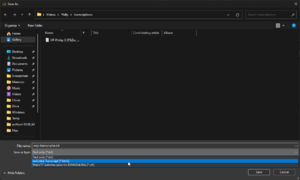
Save Transcript as: click on the blue folder to select the target folder for your transcription and select the format:
HTML to edit your transcription in the built-in editor;
TXT to save your transcription as a standard text file;
VTT to create a subtitle file. Options for file format
Start (hh:mm:ss): indicate from when in the source file the transcription should start, hh = hours, mm = minutes, ss = seconds.
Stop (hh:mm:ss): indicate until when in the source file the transcription should be performed. To transcribe only the first 5 minutes, you can use ‘00:05:00’ in this field.
Language: select the spoken language of the source file, use the ‘Auto’ option to let Whisper analyse which language is spoken. Whisper supports 100 languages. Not every language will produce an equally accurate transcription. For Dutch, Whisper works well.
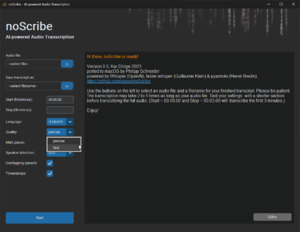
Quality: indicate how accurate the transcription should be. Precise takes longer but is more accurate. Fast is quicker, but the transcript will contain more errors. Screenshot for the quality setting
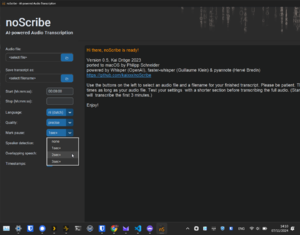
Mark pause: mark pauses longer than x number of seconds. Pauses are transcribed as round brackets with one dot per second in between, e.g. ‘(..)’ for a two-second pause. Pauses longer than 10 seconds are written out as ‘(XX seconds pause)’ or ‘(XX minutes pause)’. Marking pauses The options are:
None: do not mark pauses;
1sec+: mark pauses longer than 1 second;
2sec+: mark pauses longer than 2 seconds;
3sec+: mark pauses longer than 3 seconds.
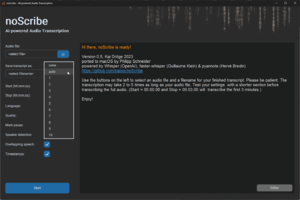
Speaker detection: options to pre-set a few things about the number of speakers in the source file. Pre-setting the number of speakers can make it easier to identify the speakers. The Auto option tries to identify the number of speakers but is not flawless. You can also set the number of speakers to None if speaker identification is not needed. This significantly speeds up transcription time, but the transcription will then be one continuous block of text. Select number of speakers
Overlapping Speech: indicate whether there are overlapping speakers in the source file. If this option is enabled, noScribe tries to mark moments when two people are speaking simultaneously with //double slashes//. This is an experimental feature.
Timestamps: when enabled, noScribe processes timestamps in the format [hh:mm:ss] in the transcription. Either at each speaker change or every 60 seconds.
Start: the Start or Cancel button when a transcription is being made. This button tends not to be visible when starting noScribe.
Editor: the button to open the built-in text editor and adjust the transcription if necessary using the audio.
Log window: a window that provides information about the software version and refers you to the documentation. The progress of the transcription will also be visible here.